


GAFE SUMMIT June 11 and 12, 2015 in Homer Glen IL
Here is the link to all of the sessions1. FAILURE IS A PART OF LEARNING. We need to incorporate this idea into all we do as teachers. We need to create activities that students don't feel like they have to get it perfect the first time. We need to be honest and show our own mistakes and failures.
INSPIRED TO TRY: Give my math students a chance to fail (try and try again) every day by these types of warm ups. Estimation Questions Would you Rather... Thanks @jamestsanders presentation
MY FAVORITE: Scroll down and see a few sites that students love. http://www.classroominthefuture.com/that-exists/
 |
| The Dung Beetle helps us remember that out of the bad comes the good. |
2. GOOGLE FORMS This is a must in my classroom. It is easy. It is fast. All the responses are nested into a spreadsheet. Here a couple of new things I have taken away. You can put conditional formatting into your response spreadsheet. For instance: when you have a survey of how students are doing and you ask them to rank it 0 to 5. Then you can conditional format any cells color to be lets say RED. That would alert you to students who have a hard time with the material. TUTORIAL
INSPIRED TO TRY: Exit slips and consistent communication through Google Forms. Also, I want to look into Move Note. Thanks @JasonMMarkey

INSPIRED TO TRY: Exit slips and consistent communication through Google Forms. Also, I want to look into Move Note. Thanks @JasonMMarkey

3. GOOGLE DOC and GOOGLE SLIDE If you are trying to give a document to someone else so they can use it on their own, in the url at the top of the document just change the /edit to /copy. Tutorial I also learned how to make a pictorial table of contents in Google. Here is an example. Slides Thanks @jheil65

4. PADLET.COM Padlet is my all time favorite student interactive site. This session confirmed that Padlet is the BEST. Padlet is simply a public posting board that the technology doesn't get in the way. Go to http://padlet.com and sign up today. I have my students all have accounts too. Thanks @HollyClarkEdu

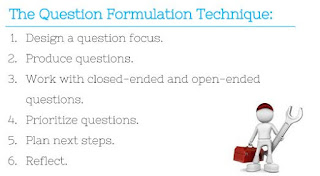
5. QUESTIONS. We don't allow students to ask enough questions. I learned a structure that will help my students to ask questions without fear. I'm really excited to use this. In essence, as a group of four have our students ask a lot of questions and just write them down without judgement. Then we ranked the questions for relevance and importance independently (however, it was digitally collaborated through google docs) Then have them rank them as a group of four. It was an excellent process.
INSPIRED TO TRY: I would like to begin a unit with this structure. This will help my students to ask questions before we know anything, thus give more freedom in asking any that are coming to mind. Presentation Thanks @HollyClarkEdu
6. GOOGLE + I signed up for google plus professionally. It has a lot of features that are really nice. I have more to learn. Thanks for helping me get started @cchausis

7. GOOGLE HANGOUTS I learned a lot of hangout etiquette . Most importantly, I learned how to mute when some else is talking. I learned that Hangouts are not longer tied to Google +. You can screen capture something for all to see for the hangout. You can give a link from your hangout for others to join you. Use this link to go straight to a hangout. http://g.co/hangouts And tons more. More Info here. Thanks @AmplifiedIT

8. CHROMEBOOK SHORTCUTS: I love shortcuts. This one was fun. I'm just learning my way around my new Chromebook so this was perfect timing. Here are a few of my favorite Short-Cuts.


4. PADLET.COM Padlet is my all time favorite student interactive site. This session confirmed that Padlet is the BEST. Padlet is simply a public posting board that the technology doesn't get in the way. Go to http://padlet.com and sign up today. I have my students all have accounts too. Thanks @HollyClarkEdu

5. QUESTIONS. We don't allow students to ask enough questions. I learned a structure that will help my students to ask questions without fear. I'm really excited to use this. In essence, as a group of four have our students ask a lot of questions and just write them down without judgement. Then we ranked the questions for relevance and importance independently (however, it was digitally collaborated through google docs) Then have them rank them as a group of four. It was an excellent process.
INSPIRED TO TRY: I would like to begin a unit with this structure. This will help my students to ask questions before we know anything, thus give more freedom in asking any that are coming to mind. Presentation Thanks @HollyClarkEdu

6. GOOGLE + I signed up for google plus professionally. It has a lot of features that are really nice. I have more to learn. Thanks for helping me get started @cchausis

7. GOOGLE HANGOUTS I learned a lot of hangout etiquette . Most importantly, I learned how to mute when some else is talking. I learned that Hangouts are not longer tied to Google +. You can screen capture something for all to see for the hangout. You can give a link from your hangout for others to join you. Use this link to go straight to a hangout. http://g.co/hangouts And tons more. More Info here. Thanks @AmplifiedIT

8. CHROMEBOOK SHORTCUTS: I love shortcuts. This one was fun. I'm just learning my way around my new Chromebook so this was perfect timing. Here are a few of my favorite Short-Cuts.

Screen Capture

Turn the screen 90 degrees. This one is most helpful for teachers for when students are playing tricks on their friends.

This opens up all the Short-Cuts.
I took all of these shortcut images from the presentation from Adad Ocampo which was great!

