
Showing posts with label digital. Show all posts

Monday, August 31, 2015

Easy Digital Collaboration: Padlet


I have been using Padlet.com for a couple of years now.  This year it is especially nice because we just went to a Chromebook for each student.  The benefits are many for me. Accountability. The students see others giving correct form for their work, they will want to give the correct form too. It raises the bar for quality work by being public.  This is great for getting 100% participation. Another big benefit is the fact that ALL students will have a voice. You will hear from EVERYONE. Lastly, I love the fact that students really would rather type than write on paper. This will amaze you. They will fill a whole section on a Padlet post, but probably would not like to write much at all on paper. You can use a Padlet tomorrow in class if you like. Just take these easy steps.


1.  Go to Padlet.com and create an account as soon as you can.  It is free.


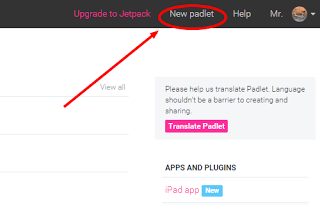
2.  Once you are logged in, then create a new Padlet.

3.  Click on the Settings Icon and name the Padlet and put any special instructions.


4.  Now set the Layout.  I like Grid the Best.


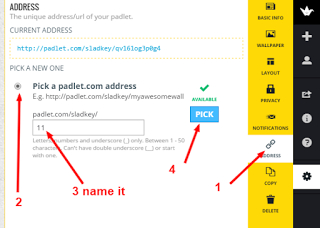
5.  Now the last thing I do is change the address and copy it.  This makes it easier for your students to get to your Padlet.  It is not necessary to take this step.  However, if you are just giving the students the URL by having them go to it, then you will want to change the name to something easy.  Now your ready for the students.

In class
1.  Have them sign up for their own Padlet.com account before you have them do anything.  When they have done this, they leave a cookie trail for any post they make. (this creates accountability)  I very rarely have them post things without their name.


2. Now you can give them the URL address that you copied above.  Just pose a question and see the Padlet fill up with student responses.


Check out the example Padlets

EXAMPLE 1:  WHO CAN ENTER THE ROOM?

http://padlet.com/sladkey/teenagers

This Padlet is locked so you may not add to it.  There is one below if you would like to try to type into one.


EXAMPLE 2: HOW LONG DOES IT TAKE TO GET TO.......

Here is another one that asked to pick a city in the lower 48 states and guess the hours it would take to drive there.  Then to calculate how long it would take averaging 60 miles an hour.  Then to find the time Google said it would take to get there. Lastly answer the question of why the Google time is different than yours.

http://padlet.com/sladkey/literalequations


This Padlet is locked so you may not add to it.  There is one below if you would like to try to type into one.  


ADD TO THE PADLET BELOW.  Put your name, school, and location.  Please put an inspirational teaching quote for us all to benefit from.  It could be from a colleague or a former teacher or simply one you have always liked.  Please give credit to whoever gave the quote.  If you don't know, just put anonymous.  


Tuesday, March 3, 2015

DOC and the Magic Straw: A Story about the Benefits of Collaboration


This is a very short story about DOC who is the inventor of a magic straw.  The story carries symbolism to show how easy it is to share your work with others and also have them contribute with you.  

Book titled 'Drago and the Magic Pen'

SYMBOLISM


DOC is named after GOOGLE Doc 

MAGIC STRAW:  The link that is created when you share a Google Document in VIEW mode.

MAGIC PEN:  The link that is created when you share a Google Document in EDIT mode.


I use Google Docs almost every day.  I love the ease of use.  If you haven't used a Google Doc, please take the time to try it out.  Most of all I love Google Docs because you never have to click on SAVE again.  So give it a try, and create a Google Doc and then SHARE your document for all to see.  Directions on how to share are below.


GOOGLE SHARING DIRECTIONS
Here are some directions for sharing a link for a document.  This is directly from  a Google Help Page on Sharing


1.  Sign in to Google Drive or a Docs, Sheets, or Slides home screen.
2.  Open the file you want to get a link for.
3.  Click Share for files or the share icon for folders in the top-right corner of the screen .
4.  Click Get shareable link in the top-right corner of the sharing box. A link to the file will be copied to your clipboard.
5.  Paste the link into an email or chat to share it.
6.  To stop allowing people to access the file using the link, open the sharing box > click the dropdown menu below "Link sharing on" > choose OFF > click Done.
7.  By default, the link you share will be view only for others. To allow people with the link to comment on or edit the file, click the dropdown menu under "Link sharing on" and change the setting from "People with the link can view" to "People with the link can comment (or can edit)".
8.  To allow anyone to be able to open the file or folder using the link, make sure to change your sharing settings to “Anyone with the link” or “Public on the web”. Click Change… when you’re in the sharing box to change this setting.

Wednesday, April 25, 2012

What would YOU like to see in a Digital Math Textbook?

Our department is looking into writing our own digital textbook.   Whenever we adopt a new textbook it seems like we rewrite it anyway.  Why not write it ourselves.  So we discussed the question:  "What would you like to see in a digital textbook?"   Please add to the list by giving a comment.


1.  Levels of examples

2.   Video examples

3.   Video lessons

4.   Assessment tool

5.  Homework problems easily printable

6.  Link for students to access SMARTBoard notes

7.  Geogebra/sketchpad/fathom activities

8.  Wikipedia like edits

9.  Accessibility (all browsers, phones, etc)

10.  Interactive Practice

11.  Homework submission

12.  Dynamic charts

13.  Exploratory features

14.  Tutorials

15.  Plenty of practice problems

16.  Online quizzes with built in mastery and explanation of correct answer

17.  Test generator-choose questions by standards. Alternate questions

18.  Students can highlight sections, annotate on-line, and drag and drop main ideas to make a study guide.

19.  Targets generator with tutorial

20.  Reference to Google tutorial topics

21.  Aleks like account

22.  Shows only the problems that the teacher wants to give.

23.  Dynamic and up to date

24.  Immediate feedback on practice

25.  Printable Homework

26.  Grades and inputs the scores into grade book

27.  Interactive links

28.  Dynamic Charts (up to date)

29.  Easy to view on a Smartphone

30.  Links to other help websites like Khan Academy

31.  Lessons if they don’t understand a concept

32.  Some type of self-assessment where they can see what their mistakes are

33.  More practice problems at different levels of difficulty

34.  Some sort of explanation or hint for practice problems that a student doesn’t know how to do


Please give some ideas that you have?